

Popular Questions
Are Sablute keyboards mechanical or membrane?
Most Sablute keyboards are membrane keyboards designed for quiet daily typing, office work, and long desk use. They are not designed to feel or sound like mechanical keyboards. If you prefer a softer, quieter typing experience, Sablute keyboards may be a good fit.
Are Sablute keyboards quiet?
Yes. Most Sablute keyboards are designed for quiet office use, making them suitable for shared workspaces, home offices, libraries, and late-night work. Actual typing sound may vary slightly depending on the model, desk surface, and typing style.
Do Sablute keyboards and mice work with Mac and Windows?
Many Sablute keyboards and mice are compatible with Windows, Mac, and other devices, depending on the connection type of the specific model. Some shortcut keys may work differently on Mac and Windows. Please check the product page or user manual for model-specific compatibility details.
Do all Sablute products support Bluetooth?
No. Not all models support Bluetooth. Some Sablute products use a 2.4G USB receiver only, while others support Bluetooth or tri-mode connection. Please check the product page carefully before purchasing.
What is the difference between 2.4G, Bluetooth, and tri-mode connection?
2.4G connection uses a USB receiver and is usually simple and stable for laptops and desktops. Bluetooth connects directly to Bluetooth-enabled devices without a USB receiver. Tri-mode products usually support multiple connection options, such as Bluetooth and 2.4G, so you can switch between different devices more easily.
How do I know which keyboard and mouse combo is right for me?
If you work long hours at a desk, choose an ergonomic keyboard or keyboard and mouse combo with a palm rest or curved layout. If you use multiple devices, look for Bluetooth or tri-mode connection. If you want a simple and stable setup, a 2.4G wireless combo may be easier to use. If you need a mouse for wrist comfort, consider a vertical or ergonomic mouse.
Do all Sablute keyboards come with a palm rest?
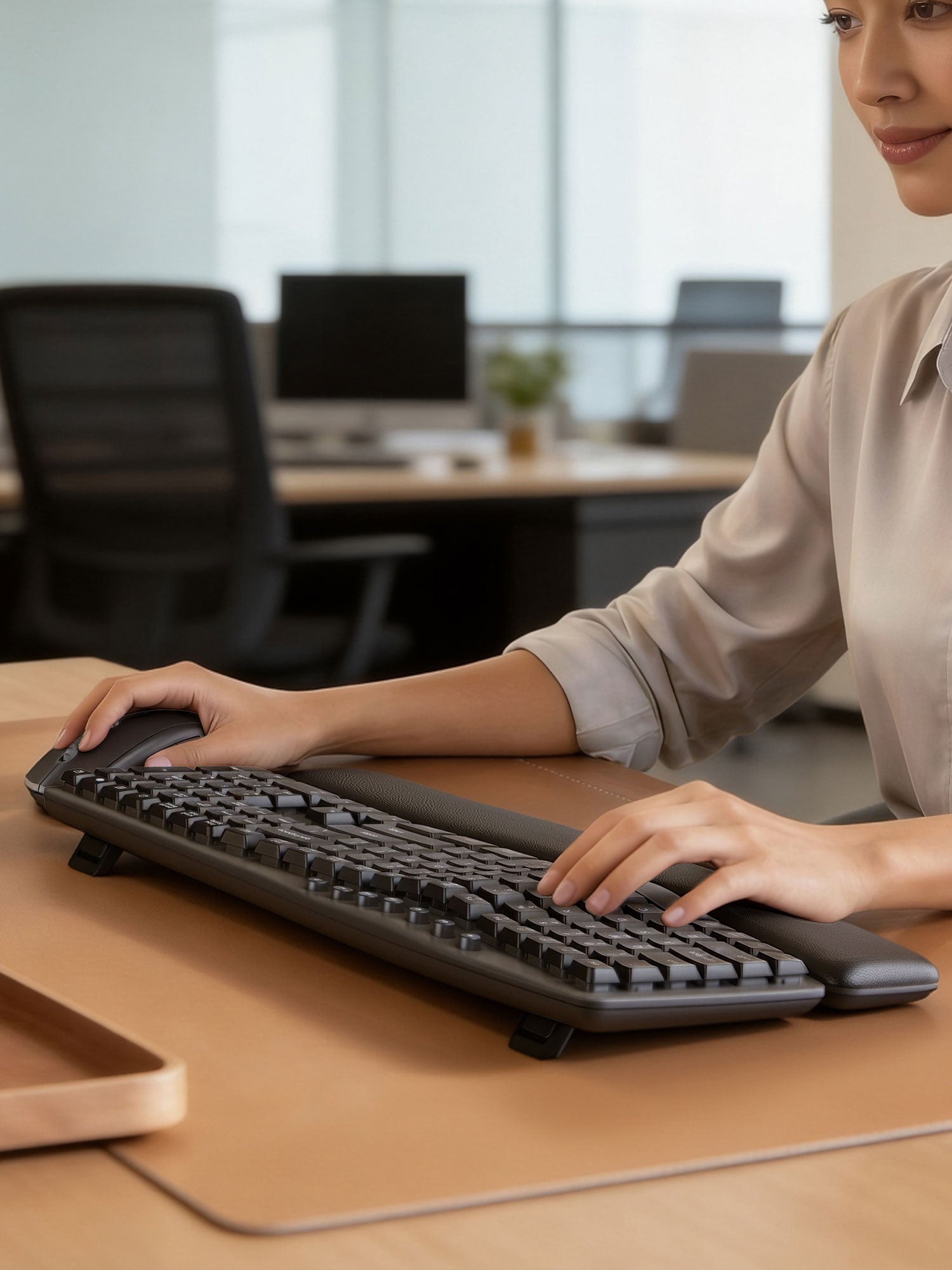
Many Sablute ergonomic keyboards and combos include a built-in or detachable palm rest, but not every model is the same. Please check the product images and product description for the specific model you are interested in.
Where can I download the user manual?
You can download the user manual here.
Setup & Connection
How do I connect my Sablute keyboard or mouse with the USB receiver?
Turn on the keyboard or mouse, plug the USB receiver into your computer, and wait a few seconds for the device to connect automatically. If it does not connect, make sure the device has enough battery, the power switch is turned on, and the USB receiver is fully inserted.
How do I connect my Sablute product via Bluetooth?
For Bluetooth-supported models, turn on the device and switch it to Bluetooth mode. Press and hold the pairing button or Bluetooth channel key until the indicator light flashes. Then open Bluetooth settings on your computer, tablet, or phone and select the Sablute device from the list.
Why can’t I find the device in Bluetooth settings?
Make sure your product supports Bluetooth and is in Bluetooth pairing mode. The indicator light should usually be flashing during pairing. You can also turn Bluetooth off and on again on your computer or tablet, then try searching again. If the device was previously connected to another device, disconnect it from the old device first.
What should I do if my keyboard or mouse cannot connect?
First, check the battery level and power switch. Then confirm whether the device is in the correct connection mode, such as 2.4G or Bluetooth. Keep the device close to your computer during pairing. If the issue continues, restart your computer and follow the pairing instructions in the user manual.
Why is my keyboard typing slowly or repeating letters?
Typing delay or repeated letters may be caused by low battery, wireless interference, long distance from the receiver, or an unstable USB port. Please charge the device or replace the battery if needed, move the receiver closer, and avoid placing metal objects between the device and receiver.
Why is my mouse cursor not moving smoothly?
Please check the battery level and try using the mouse on a flat, non-reflective surface. You can also adjust the DPI setting if your model supports DPI switching. If you are using a 2.4G receiver, try another USB port or move the receiver closer to the mouse.
How do I switch between devices?
For multi-device or tri-mode models, use the device switch button or channel keys to switch between connected devices. The exact steps may vary by model, so please check the user manual for the correct button combination.
Compatibility
Are Sablute products compatible with Windows?
Most Sablute keyboards and mice are compatible with Windows laptops and desktop computers. For 2.4G wireless models, please make sure your computer has an available USB port for the receiver.
Are Sablute products compatible with Mac?
Many Sablute products can be used with Mac devices, but shortcut keys and layout functions may differ from Windows. Some models are designed with Mac-friendly layouts, while others are more Windows-focused. Please check the product page before purchasing.
Can I use Sablute keyboards or mice with an iPad?
Bluetooth-supported models may work with iPad or other tablets that support external keyboards or mice. 2.4G receiver-only models may require a compatible adapter and may not be ideal for tablet use.
Can I use Sablute products with a laptop that has no USB-A port?
If your product uses a 2.4G USB-A receiver, you may need a USB-C to USB-A adapter for laptops with only USB-C ports. Bluetooth-supported models can connect without a USB receiver if your laptop supports Bluetooth.
Why do some shortcut keys work differently on Mac and Windows?
Mac and Windows use different system shortcuts and keyboard layouts. Some function keys may not perform exactly the same across operating systems. Please refer to the product manual for available shortcut functions.
Can I use the same keyboard and mouse with multiple computers?
Some Sablute products support multi-device switching through Bluetooth or tri-mode connection. Receiver-only models usually connect to one device at a time. Please check your model’s connection features.
Charging, Battery & Backlight
Can I use the product while charging?
Many rechargeable Sablute products can be used while charging, but this may vary by model and charging port design. Please check the product page or user manual for details.
How long does the battery last?
Battery life depends on the model, usage time, backlight settings, and connection mode. Using backlight or RGB lighting usually consumes more power. To extend battery life, turn off the backlight when it is not needed.
Why does the backlight turn off automatically?
Some models automatically turn off the backlight to save power. This is normal. Press any key or follow the manual instructions to turn the backlight back on.
How do I adjust or turn off the backlight?
For backlit models, you can usually adjust brightness, lighting mode, or turn off the backlight using shortcut keys. The exact key combination may vary by model, so please check the user manual.
Why does my wireless product stop working after a period of inactivity?
Some Sablute products enter sleep mode automatically to save battery. Click the mouse button or press a key to wake the device. It may take a few seconds to reconnect.
Orders, Shipping, Returns & Warranty
Where do you ship?
We currently ship within the United States. Please check our Shipping Policy page for the most up-to-date shipping area and delivery details.
Do you offer free shipping?
Yes. We offer free U.S. shipping on eligible orders. Delivery time may vary depending on your location and order processing time.
How long does shipping take?
Orders are usually processed within 2 business days. After your order ships, delivery time depends on the carrier and your location. You will receive tracking information once your order has shipped.
Do you offer free returns?
Yes. We offer 30-day free returns according to our return policy. Please make sure the product is returned with the necessary accessories and packaging when possible. For full details, please visit our warranty page.
What is the warranty policy?
Sablute products come with a 2-year warranty for eligible quality-related issues. Warranty coverage may vary depending on the issue and product condition. Please contact our support team with your order number, product model, and a description of the issue.
What should I include when contacting support?
To help us solve your issue faster, please include your order number, product model, a short description of the problem, and photos or videos if available. For connection issues, please also tell us your computer or device model and operating system.
How can I contact Sablute support?
You can contact us through the Contact Us page or email our support team at support@sablute.com. We will do our best to help you with product setup, troubleshooting, returns, or warranty questions.
User Manuals & Product Support
How do I find my product model?
You can usually find the product model on the product packaging, product label, user manual, or order details. If you are not sure which model you have, please send us a photo of the product and we will help you identify it.
What if I lost my user manual?
You can download a digital copy from our User Manual page. Please select the correct model before downloading.
The manual does not match my product. What should I do?
Please contact our support team and include your order number, product model, and a photo of your product. We will help you find the correct manual or setup instructions.